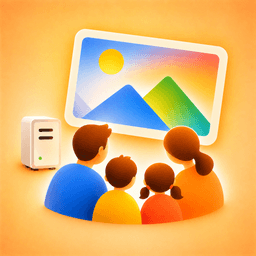
Timich for iPhone, iPad, Android TV, and Google TV
Timich
Browse your self-hosted Immich photo library from iPhone, iPad, Android TV, and Google TV, with LLM workflows through Timich MCP.
Timich Agent
Immich from outside your home network, plus MCP.
Timich Agent runs near your Immich server so Timich can browse your library without importing your photos. Timich MCP connects LLM tools to the same paired Agent.
Timich is an app for browsing photos and videos from your personal self-hosted Immich server on iPhone, iPad, Android TV, and Google TV.
Immich is a free and open-source photo management solution that runs on hardware you control. Timich is designed for people who already use Immich and want a focused mobile browsing experience for their own library.
Download Timich from the App Store or Timich TV from Google Play.
Timich for iPhone and iPad
- Browse photos and videos from your Immich library.
- Connect directly to Immich with an API key or your Immich email and password, or pair with Timich Agent.
- Open photos in a full-screen detail view.
- Play videos directly from your Immich server.
- Share photos and videos with the iOS share sheet.
- Save photos and videos from Immich to your device photo library.
- Use Demo Mode to try the gallery experience without connecting a server.
Timich TV
Timich TV brings the same private Immich browsing idea to Android TV and Google TV.
The TV app pairs with a Timich Agent, then lets you browse recent photos, search your library, open photo and video detail views, and run random slideshows from the couch. It is designed for remote-control navigation and large screens.
Download Timich TV from Google Play. It does not import your library into Timich-controlled cloud storage; media is requested from the Timich Agent that you run or control.
Timich TV can:
- Pair with Timich Agent instead of entering Immich API credentials on the TV.
- Browse recent photos and videos with remote-control navigation.
- Search your library through your paired Agent.
- Open photo and video detail views on a large screen.
- Run random slideshows from your own library.
Timich Agent
Immich from outside your home network, plus MCP.
Timich Agent runs near your Immich server and gives Timich a private way to browse your library without importing your photos into Timich. Timich MCP connects MCP clients and LLM tools to your paired Agent.
Learn more about Timich Agent or open Timich Agent on GitHub.
Timich Reach
Timich Reach adds secure Remote Browsing for a paired Timich Agent, so you can reach your own photo library when you are away from the local network.
Timich Reach Personal supports up to two active app devices. Timich Reach Family supports Family Sharing and up to five active app devices.
Remote Browsing is built for personal self-hosted libraries. Timich does not host or import your library. Your media stays on the Immich server and Timich Agent that you run or control.
Before You Start
- Timich supports iPhone and iPad on iOS 18 or later.
- Timich TV supports Android TV and Google TV and browses through a paired Timich Agent.
- You need access to an Immich server that you control or are allowed to use.
- A network connection to your Immich server, Timich Agent, or Timich Reach route is required for browsing your own library.
Getting Started
iPhone and iPad
- Open Timich.
- Enter your Immich server URL or pair with your Timich Agent.
- Choose your connection method.
- Connect with your API key or your Immich account email and password.
- Browse your library from the main Photos screen.
Android TV and Google TV
- Open Timich TV.
- Enter the Timich Agent URL and pairing code.
- Pair the TV app with your Agent.
- Browse recent photos, search your library, open details, or start a random slideshow.
Troubleshooting
I cannot connect
- Check that your server URL is correct.
- Make sure your Immich server or Timich Agent is reachable from your device.
- If you use an API key, confirm that the key is still valid.
- If you use email and password, confirm that your Immich credentials are correct.
My library does not load
- Check your internet or local network connection.
- Confirm that your Immich server and Timich Agent are online.
- Try clearing your saved connection info and connecting again.
Saving to Photos failed on iPhone or iPad
- Confirm that Timich has permission to add items to your photo library.
- Make sure your device has enough free storage.
Support
For support, email dev@runo.jp.
When contacting support, please include your Timich app version, device model, OS version, connection or pairing method, Timich Agent version if you use an Agent, a short description of the issue, and steps to reproduce the problem.
Read the Privacy Policy for details about what information Timich uses. Read the Terms of Use for Timich Reach subscription terms.